
How to add custom workflow step
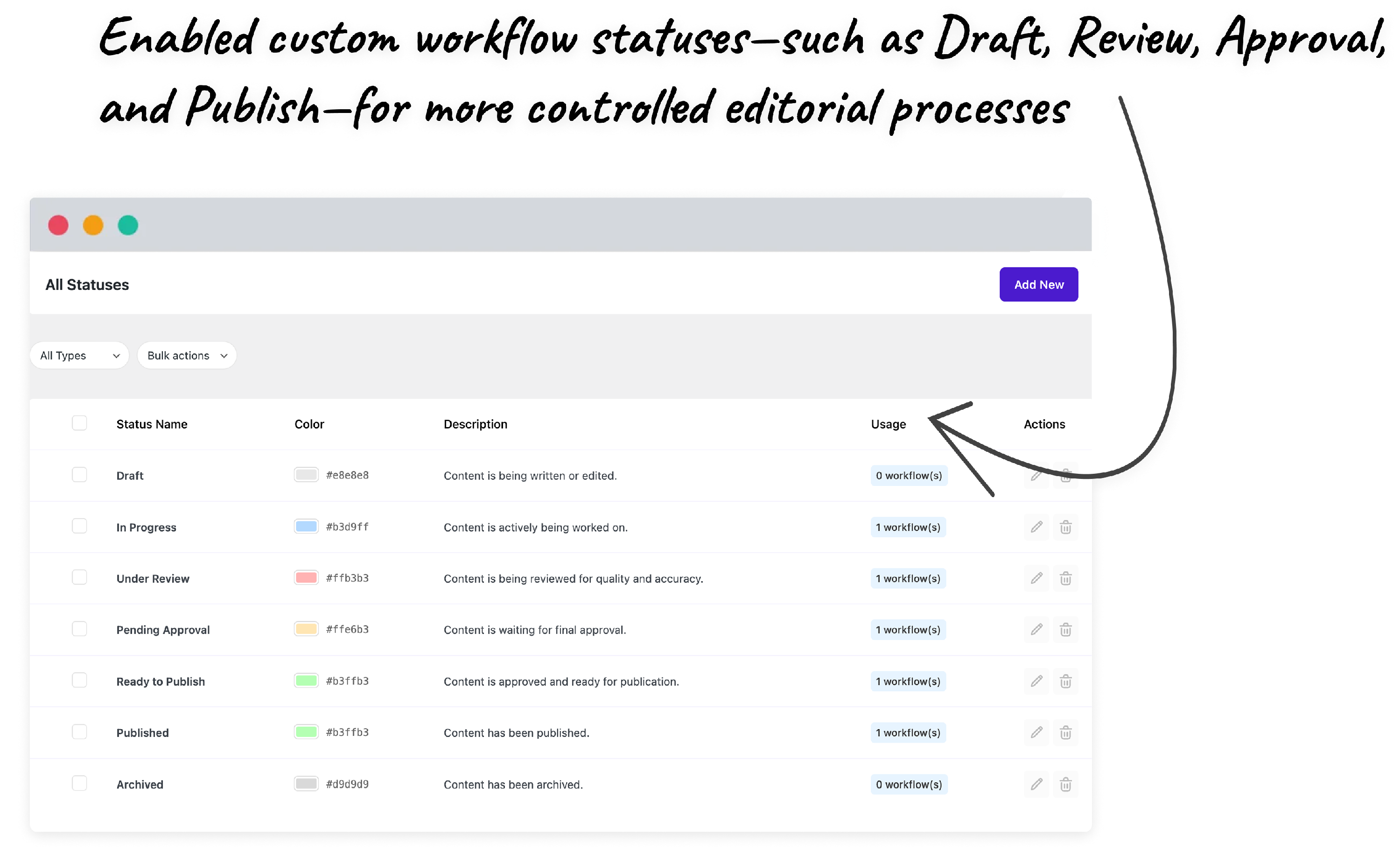
By default, Multicollab provides four workflow steps namely:
- Draft
- Review
- Approval
- Publish
If you wish to add a custom workflow step for your requirement and control who can move content through it, follow these steps:
Step 1: Open the Workflows Settings
- Go to your WordPress dashboard
- Navigate to Multicollab → Workflows
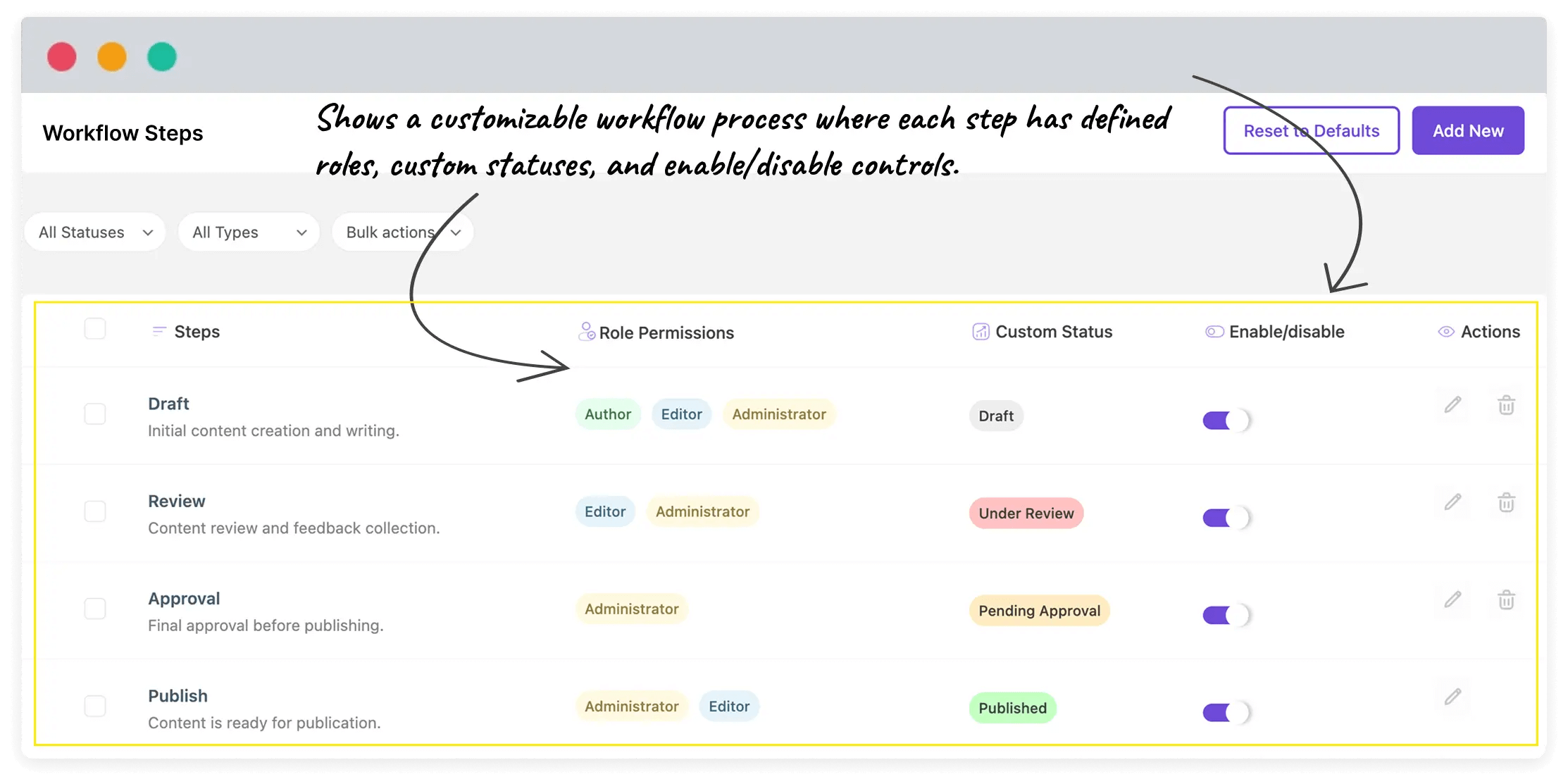
This page shows all existing workflow steps, their assigned roles, linked statuses, and whether they are enabled.
Step 2: Click “Add New” to Create a Workflow Step
- Click the Add New button in the top-right corner
- The Add Workflow Step modal will open
This is where you define the new step.
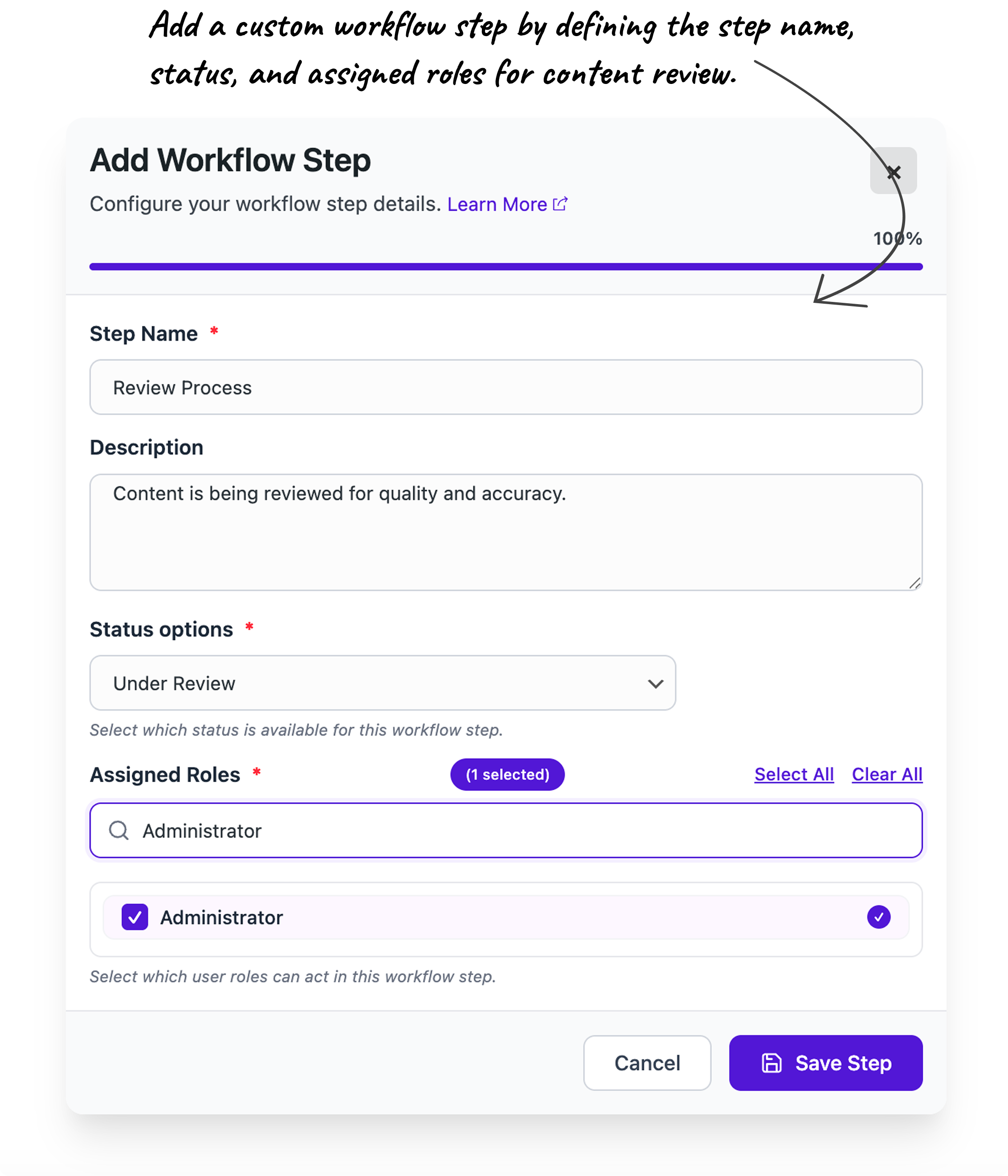
Step 3: Enter Workflow Step Details
Inside the Add Workflow Step modal, fill in the following fields:
Step Name: Enter a clear name for the workflow stage. Example:
- Editor Review
- SEO Check
- Legal Approval
- Post Publish
Description (Optional)
Add a short description to explain what happens at this step. This helps your team understand the purpose of the stage.
Step 4: Assign a Status to the Step (Optional)
Choose a status from the Status dropdown.
Examples:
- Draft
- In Progress
- Under Review
- Ready to Publish
- Archived
- Published
Statuses help visually represent the content’s state inside the editor and dashboard.
If you need a custom status, you can create one from Multicollab → Status before assigning it here.
Step 5: Select Role-Based Permissions
Under 'Assigned Roles', choose which user roles are allowed to move content through this workflow step. For example:
- Administrator
- Editor
- Author
- Contributor
- Subscriber
- Guest
- Customer
Step 6: Save the Workflow Step
- Click Save. The new step will now appear in the All Processes list
By default, the step is enabled and active in your workflow.
Step 7: Enable or Disable the Step (Optional)
Each workflow step includes an Enable/Disable toggle.
You can disable a step when:
- Testing new editorial processes
- Temporarily removing a stage (for example, Legal review)
- Adjusting workflows without deleting steps
Disabled steps are preserved and can be re-enabled anytime.
Check out this tutorial: